Prerequisites
Before you begin, ensure you have completed:- Local Testing to ensure you already have SCANOSS-PY installed and a scanned project
- Project scan results from the previous steps
- SCANOSS API key for enterprise features
If you haven’t completed the Local Testing guide yet, start there first. This guide builds on the scan results you generated in that step.
Overview
This guide demonstrates different ways to perform advanced analysis with SCANOSS:- SCANOSS API with Postman Interactive API testing for cryptography and vulnerability queries
- SCANOSS-PY Command-line tool for automated scanning and analysis
- SBOM Workbench Visual desktop application for comprehensive analysis
SCANOSS with Postman
Postman provides an interactive way to explore the SCANOSS API and understand how advanced analysis works.Prerequisites
- Install Postman
- SCANOSS API Key
- Component PURLs
Setup Postman Environment
Create Environment Variables:- In Postman, click Environments (left sidebar)
- Click Create Environment or +
- Name it “SCANOSS”
- Add these variables:
- Activate the environment by clicking the checkmark next to SCANOSS in the left panel, or select SCANOSS from the environment dropdown in the top right corner
Query Cryptographic Algorithms
You can query PURLs from your scan results (obtained from Local Testing) or use the sample PURLs shown below to learn how the API works. Single Component Query:- Create a new request by clicking the + icon in the tab bar
- Set request type to GET
- Enter URL:
- Click Params tab and add query parameters:
- Key:
purlValue:pkg:github/scanoss/scanoss.py(or use a PURL from your scan results) - Key:
requirementValue:>1.3.5(or use a version from your scan results)
- Key:
- Click Authorization tab and configure:
- Auth Type: Select
API Key - Key:
X-Api-Key - Value:
{{api_key}} - Add to: Ensure it’s set to
Header
- Auth Type: Select
- Click Send
- Create a new request
- Set request type to POST
- Enter URL:
- Click Authorization tab and configure:
- Auth Type: Select
API Key - Key:
X-Api-Key - Value:
{{api_key}} - Add to: Ensure it’s set to
Header
- Auth Type: Select
- Click Headers tab and add:
- Key:
Content-TypeValue:application/json
- Key:
- Click Body tab, select raw and JSON
- Enter request body:
- Click Send
Query Cryptographic Hints
Hints reveal the encryption libraries, protocols and SDKs used by components.- Create a new request
- Set request type to GET
- Enter URL:
- Add query parameters:
- Key:
purlValue:pkg:github/scanoss/scanoss.py - Key:
requirementValue:v1.19.5
- Key:
- Click Authorization tab and configure:
- Auth Type: Select
API Key - Key:
X-Api-Key - Value:
{{api_key}} - Add to: Ensure it’s set to
Header
- Auth Type: Select
- Click Send
Query Vulnerabilities
Single Component Vulnerability Query:- Create a new request
- Set request type to GET
- Enter URL:
- Add query parameters:
- Key:
purlValue:pkg:npm/lodash - Key:
requirementValue:4.17.20
- Key:
- Click Authorization tab and configure:
- Auth Type: Select
API Key - Key:
X-Api-Key - Value:
{{api_key}} - Add to: Ensure it’s set to
Header
- Auth Type: Select
- Click Send
- Create a new request
- Set request type to POST
- Enter URL:
- Click Authorization tab and configure:
- Auth Type: Select
API Key - Key:
X-Api-Key - Value:
{{api_key}} - Add to: Ensure it’s set to
Header
- Auth Type: Select
- Click Headers tab and add:
- Key:
Content-TypeValue:application/json
- Key:
- Click Body tab, select raw and JSON, then add body:
- Click Send
Save Postman Collection
To reuse these requests:- Click Collections (left sidebar)
- Click Create Collection or +
- Name it “SCANOSS Advanced Analysis”
- Click into each of your requests, then click save request o nthe right hand side, select the collection and click save
- Click … next to collection name > More > Export > Continue with Export > Export JSON
- Share the exported JSON with your team
SCANOSS-PY (Command Line)
SCANOSS-PY provides powerful command-line capabilities for automated scanning and analysis.Detect Cryptographic Algorithms
You have two options for analysing cryptography, using the existing scan results or performing a new scan with focus on cryptographic detection. Analyze Existing Scan Results If you already have scan results from Local Testing, examine them for cryptography information:results.json file containing component metadata including PURLs, versions and detected cryptography information.
Query Cryptographic Algorithms
After identifying components with cryptography, you can query detailed algorithm information. Extract Component PURLs:Query Cryptographic Hints
Cryptographic hints reveal the encryption libraries, protocols and SDKs used by your components:Query Vulnerabilities
Vulnerability analysis identifies known security issues (CVEs) in your open source components, helping you prioritise security fixes. Query Single Component:SBOM Workbench (Desktop GUI)
For a more comprehensive visual analysis experience, use SBOM Workbench to explore cryptography and vulnerabilities interactively.Install SBOM Workbench
- Visit SBOM Workbench releases
- Download the installer for your platform
- Run the installer
Add Your Project
- Open SBOM Workbench
- Go to File → Settings
- Click on
+after Knowledgebase API - Enter your API details:
- API URL: Default is
https://api.osskb.org(free tier) - API Key: Optional for free tier, required for premium features
- API URL: Default is
- Save then click New project
- Select your project directory
- Configure project settings:
- Set your project name
- (Optional) Add your license information
- Configure API connection with your SCANOSS API key
Analyse Cryptography
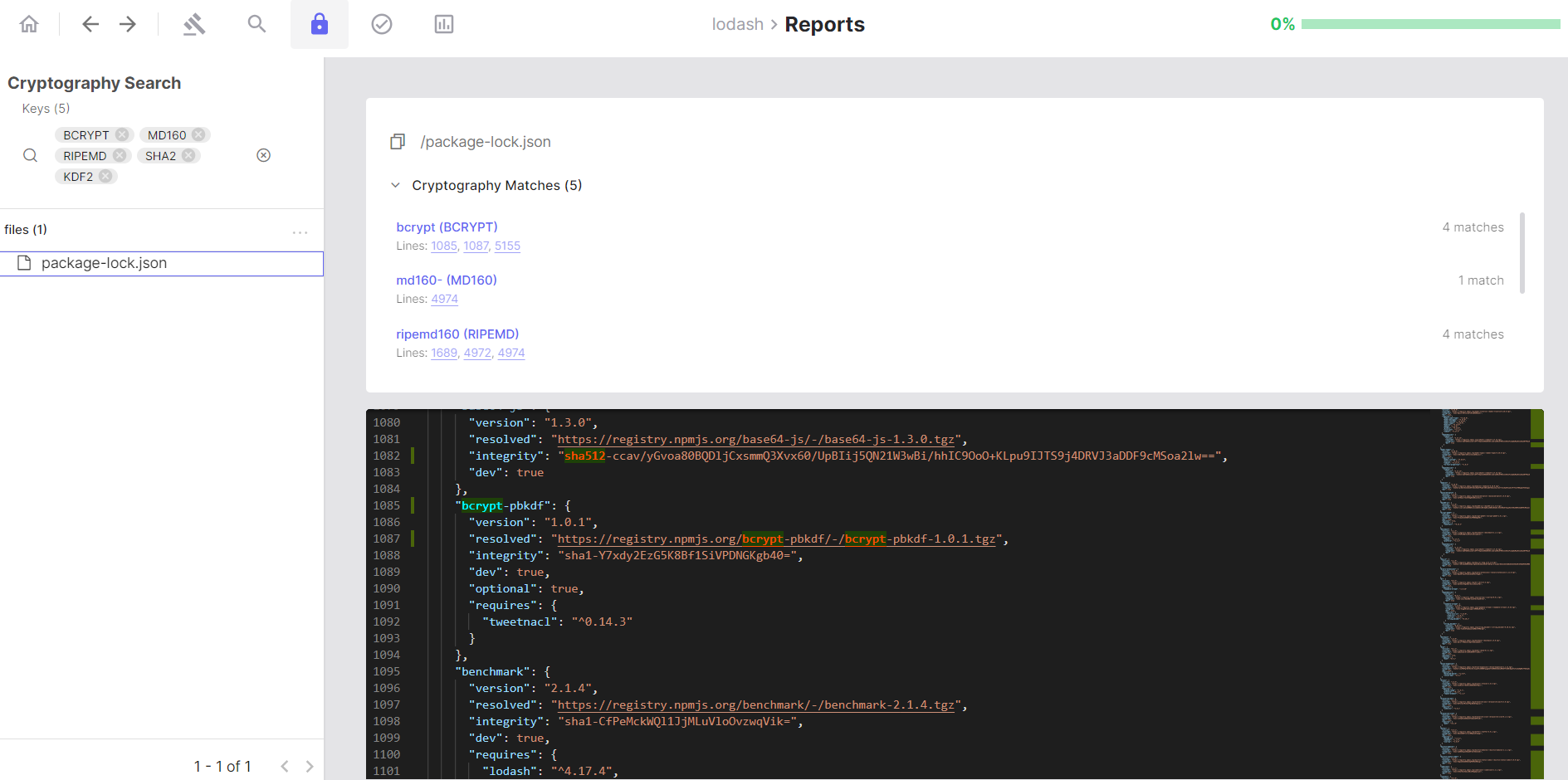
Click the Crypto Search lock symbol to view all local source code files where cryptographic keywords have been detected. Navigate Results:- The left panel shows a hierarchical tree of your source code files
- Select a file to view its source code with detected cryptographic keywords highlighted
- Click line numbers to jump directly to cryptographic implementations
- Use filters to focus on specific algorithms
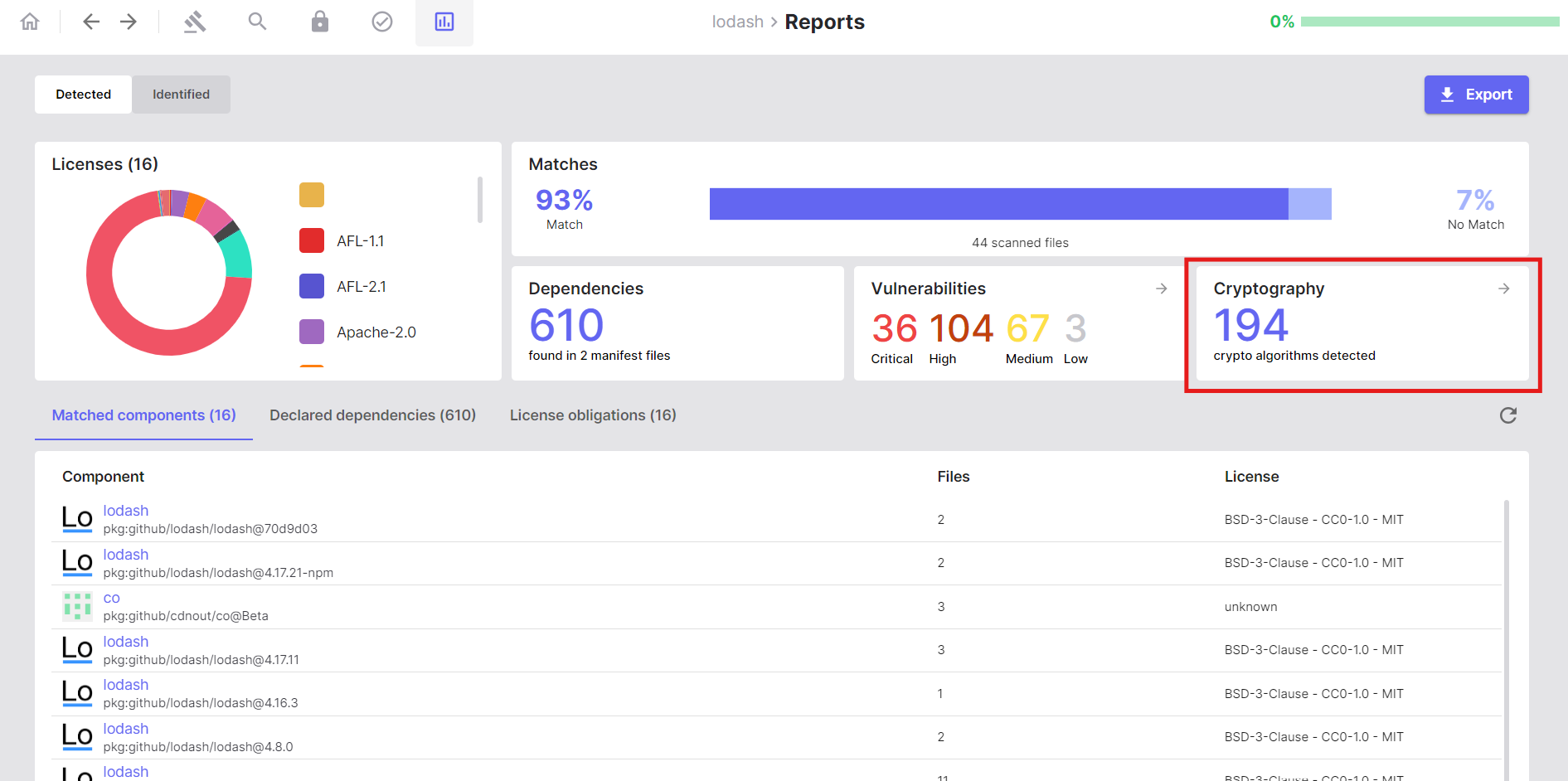
- Click the Reports button
- Navigate to the Cryptography section
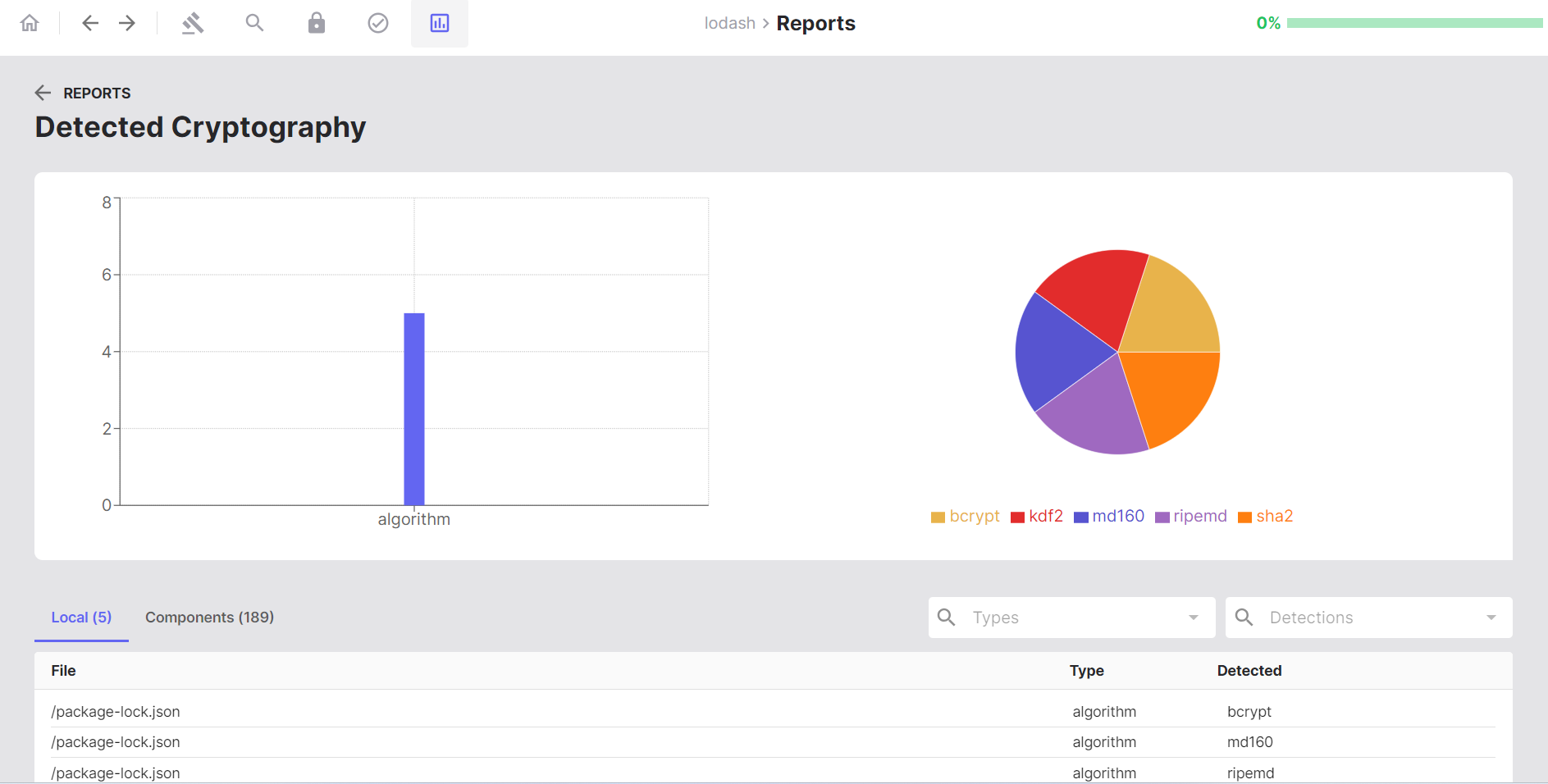
- Review statistical charts showing:
- Distribution of cryptographic algorithms
- Overall cryptographic keyword usage
- Explore the detection list showing cryptographic material per file
- Click on file paths or algorithm names to navigate back to detailed code views
Analyse Vulnerabilities
- Navigate to the Reports tab
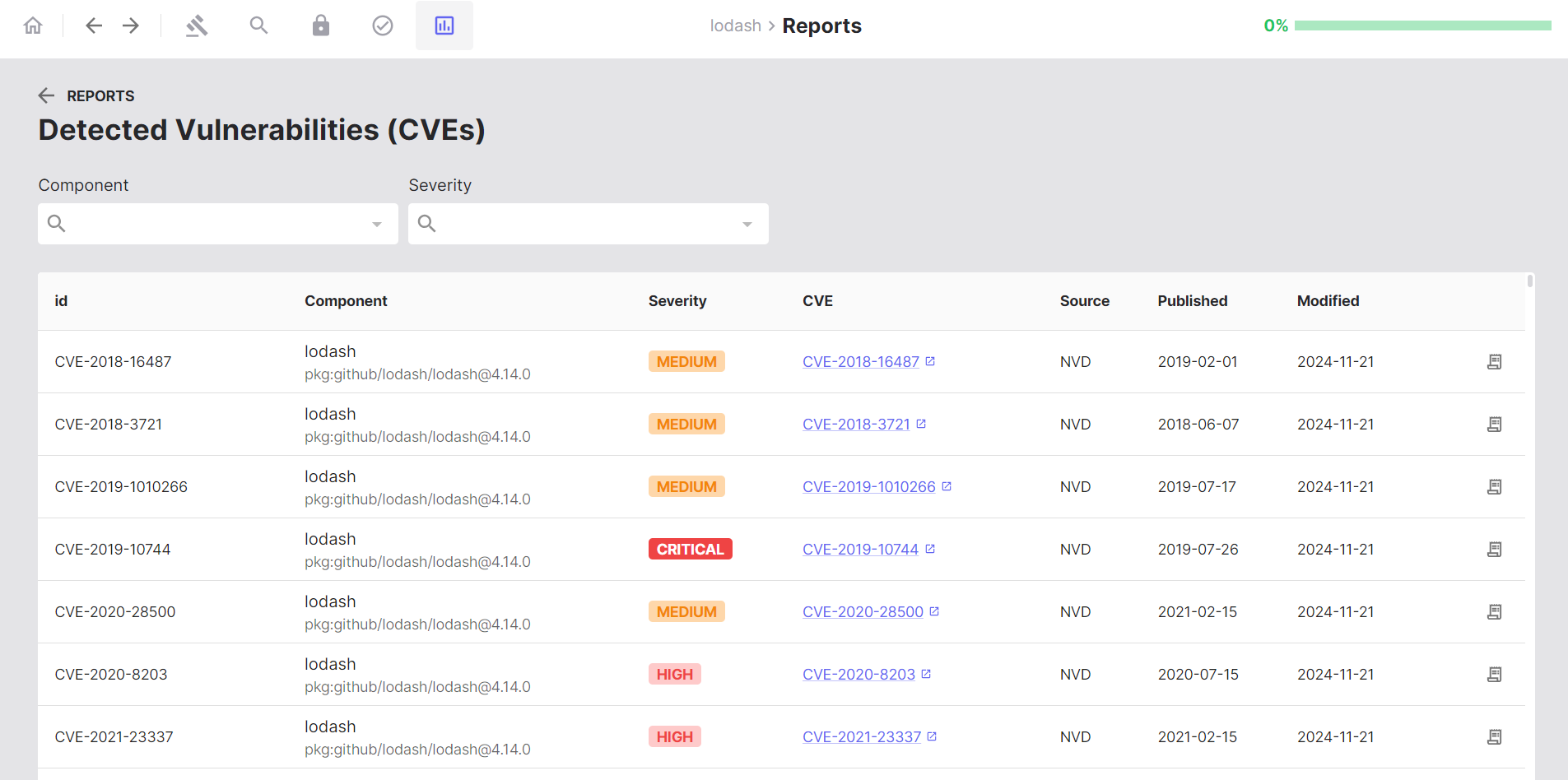
- Click on Vulnerabilities
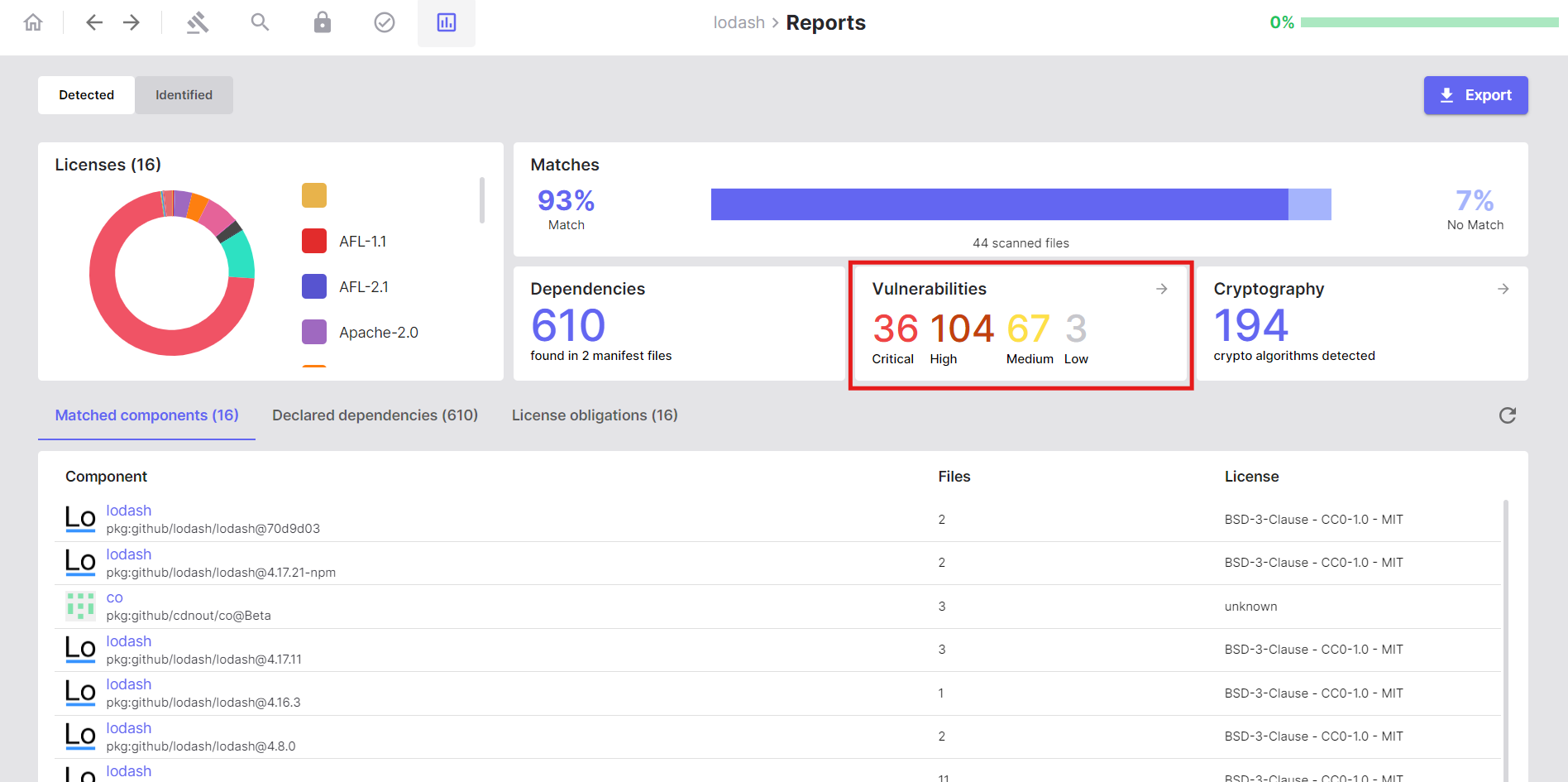
- Severity ratings
- Affected components and versions
- CVE descriptions and links