

Installation
macOS / Linux:
Windows (PowerShell as Administrator):
Verify Installation
After installation, verify the CLI is available:Configuration
Verify Your Configuration
To confirm your API key is properly configured, check the settings file that scanoss-cc automatically creates in your home directory. The tool stores its configuration in~/.scanoss/scanoss-cc-settings.json.
You can view this file to verify your API credentials:
Getting Started
Launch the desktop application:GUI Workflow
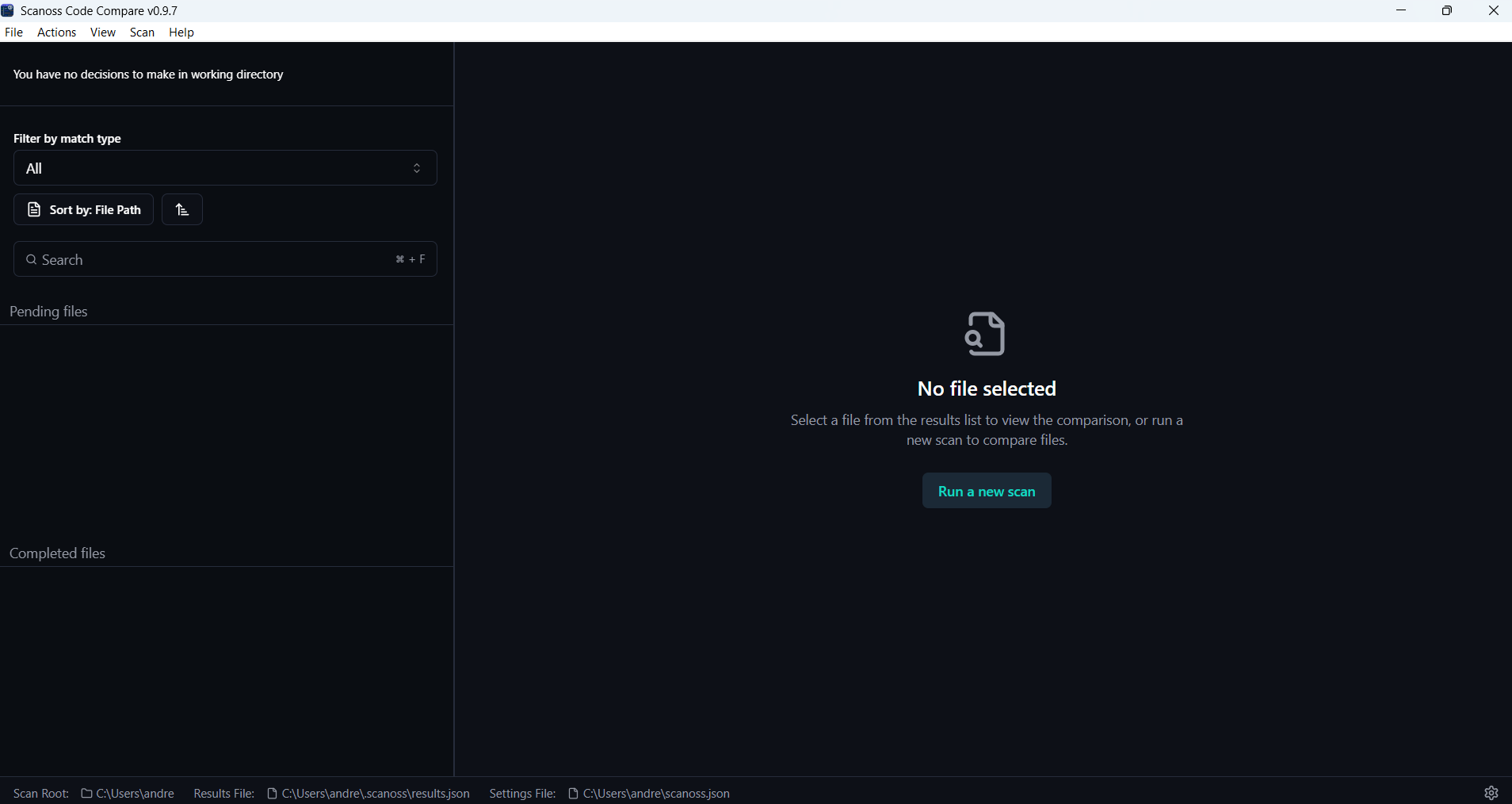
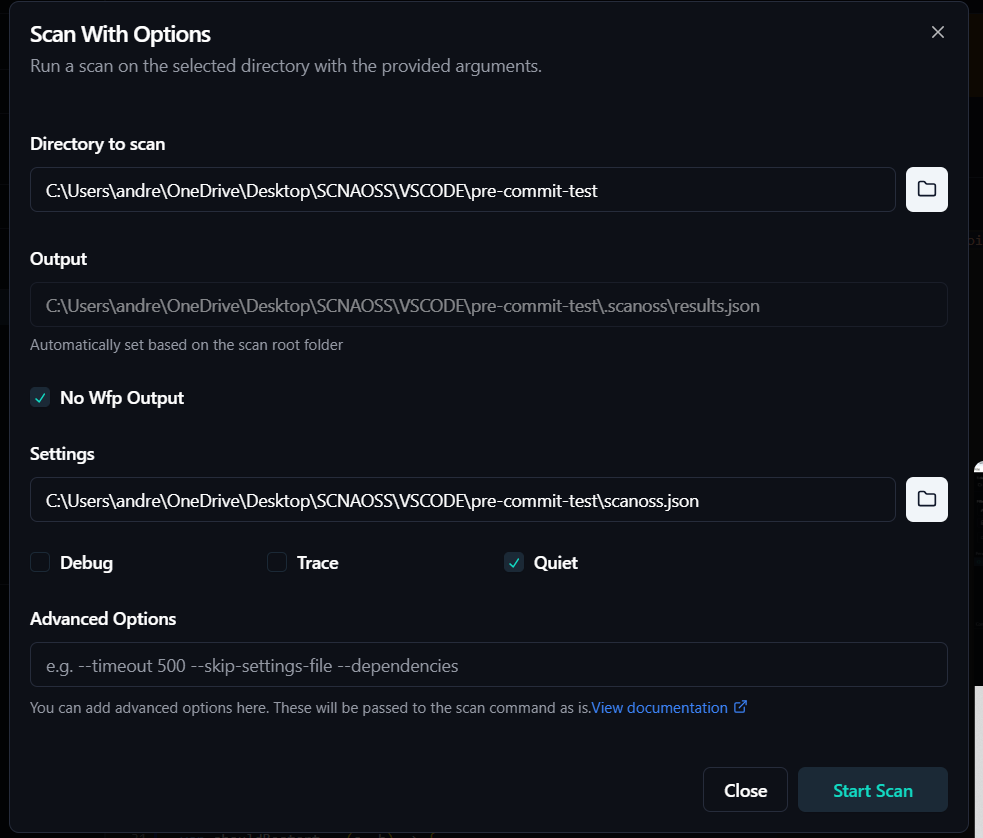
- Start Scan: Click Run a new scan, select your project or file and configure the scan settings.
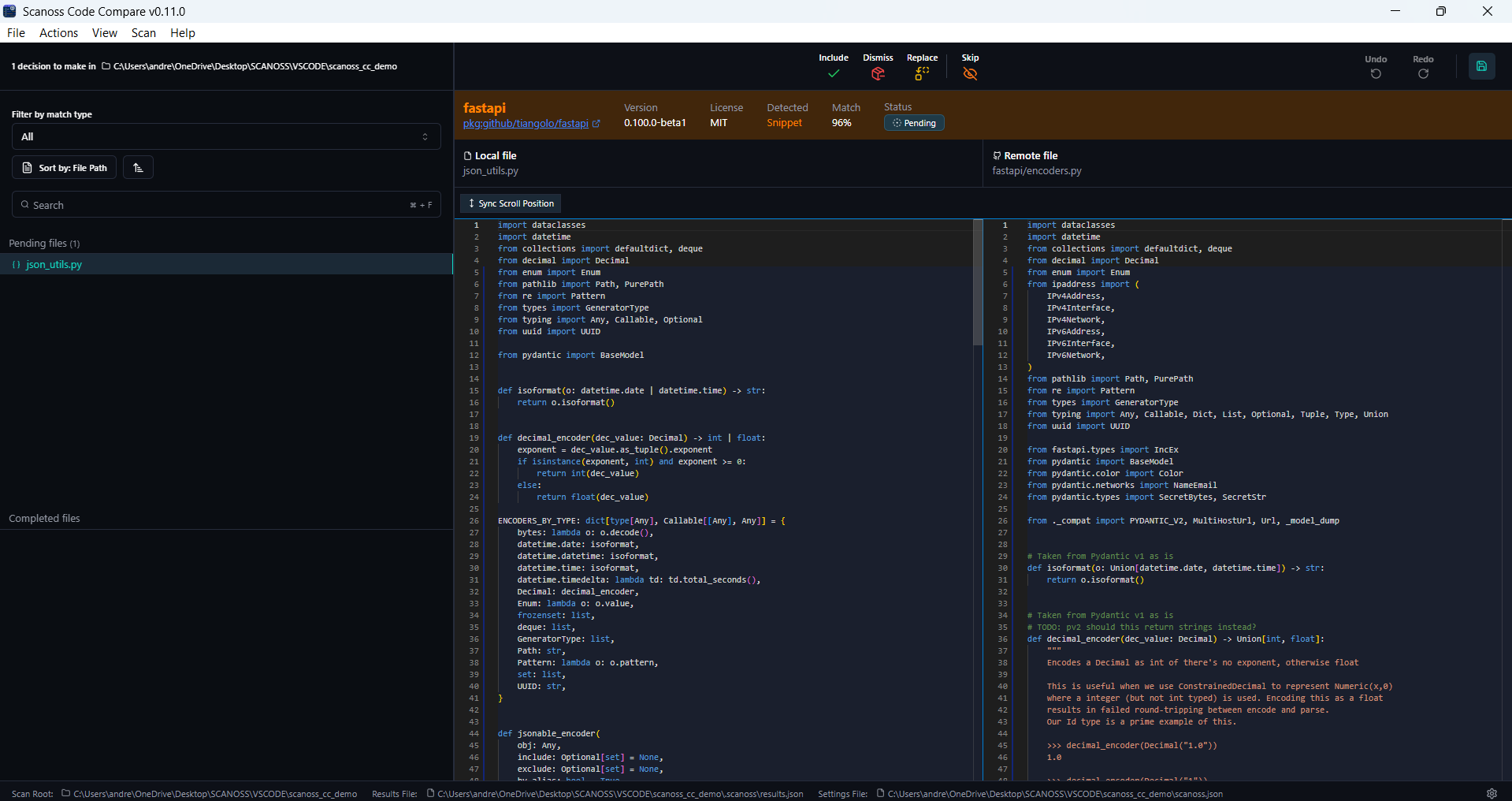
- Review Results: View side-by-side code comparisons with match details.
-
Make Decisions: Use the modal at the top of the dashboard to include, dismiss, replace or skip findings.
You can apply actions to:
- Individual files: Make decisions on specific file matches
- Entire folders: Apply the same action to all files within a folder in one go
- Components: Handle all instances of a component across your project
- Include: Add them to your project’s dependencies or documentation
- Dismiss: Document why they were dismissed for future reference
- Replace: Implement the replacement or create a task to address it
- Skip: Defer the decision for later review without taking immediate action
- Persist Decisions: To save your decisions, click Save. This creates or updates the
scanoss.jsonfile in your project root with your include, replace, remove, and skip rules. The saved rules are then reused during subsequent scans to ensure your previous decisions are preserved.